Add / Edit Opportunity Dialog
Changes
The Opportunity Pipeline dialog
boxes for Adding and Editing Opportunities have been changed as follows:
Edit Opportunity
·
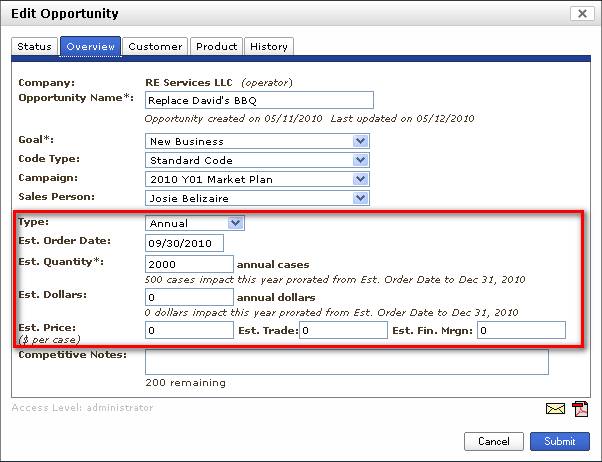
Many
fields from the Product tab have been moved to the Overview tab. See the screen shot below
·
The
Product Tab Sku section size has been increased to show more skus.
Create Opportunity
·
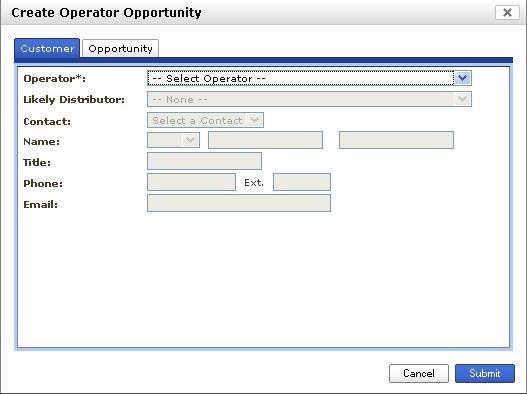
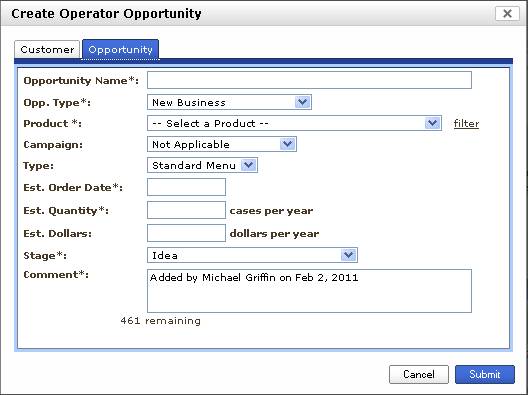
Split
into two tabs to conserve space. The
two tabs are Customer and Opportunity.
This reflects the pre change arrangement of the fields which were
divided into two sections "Customer" and "Opportunity".
·
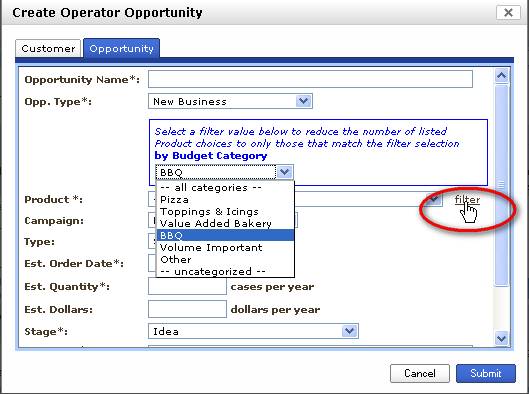
An
optional "filter" link was added to the right of the
"Product" field on the "Opportunity" tab. This filter link is only available to
Manufacturers that are using the Local Market Plans application and have Budget
Categories defined. When the user
clicks on this link, a area containing a filter options expands above the
Product selection field. (see the screen
shot below). From there the user can
change the Budget Category filter choice to reduce the number of selections in
the "Product" selection field - when the filter option is changed the
filter options box goes away and the Product selection field is re-loaded.
The
filter option was added to allow users to more easily find the proper product
when they are creating opportunities for their local market plans.
Revised Overview Tab
Revised Product Tab

Create Opportunity Customer Tab
Create Opportunity
"Opportunity" Tab
Product Filter Option